
“`html
Abandoned carts are a frustrating reality for any e-commerce business. Customers fill their baskets with enticing products, only to vanish before completing the purchase. But what if you could gently nudge them back and recover those lost sales? With Pushloop, you can! This guide walks you through setting up automated abandoned cart recovery push notifications, turning potential losses into wins.
Prerequisites: What You Need Before You Start
Before diving in, ensure you have the following:
- A Shopify store with products listed and customers actively adding items to their carts.
- An active Pushloop account. If you don’t have one yet, sign up for a free trial to explore its features.
- Basic familiarity with the Pushloop dashboard.
Step 1: Connecting your Shopify store to Pushloop
If you haven’t already, you’ll need to connect your Shopify store to Pushloop. This allows Pushloop to access the necessary data to trigger abandoned cart notifications.
Here’s how:
- Log in to your Pushloop account.
- Navigate to the “Integrations” or “Setup” section (the exact name may vary slightly depending on the Pushloop version).
- Look for the Shopify integration option and click “Connect.”
- You’ll be redirected to Shopify to authorize the Pushloop app. Grant the necessary permissions to allow data flow between your store and Pushloop.
- Once authorized, you’ll be redirected back to Pushloop, and your Shopify store should be successfully connected.
Step 2: Navigating to the Automations Dashboard
The heart of abandoned cart recovery lies within Pushloop’s automation capabilities. This is where you’ll configure the rules and messages for your recovery campaign.
Follow these steps:
- From your Pushloop dashboard, locate the “Automations” or “Campaigns” section in the main menu.
- Click on it to access the Automations dashboard. This area displays all your active and draft automations.
- Look for a button or link to “Create Automation” or “New Campaign.” Click it to begin setting up your abandoned cart recovery automation.
Step 3: Configuring the Abandoned Cart Recovery Automation
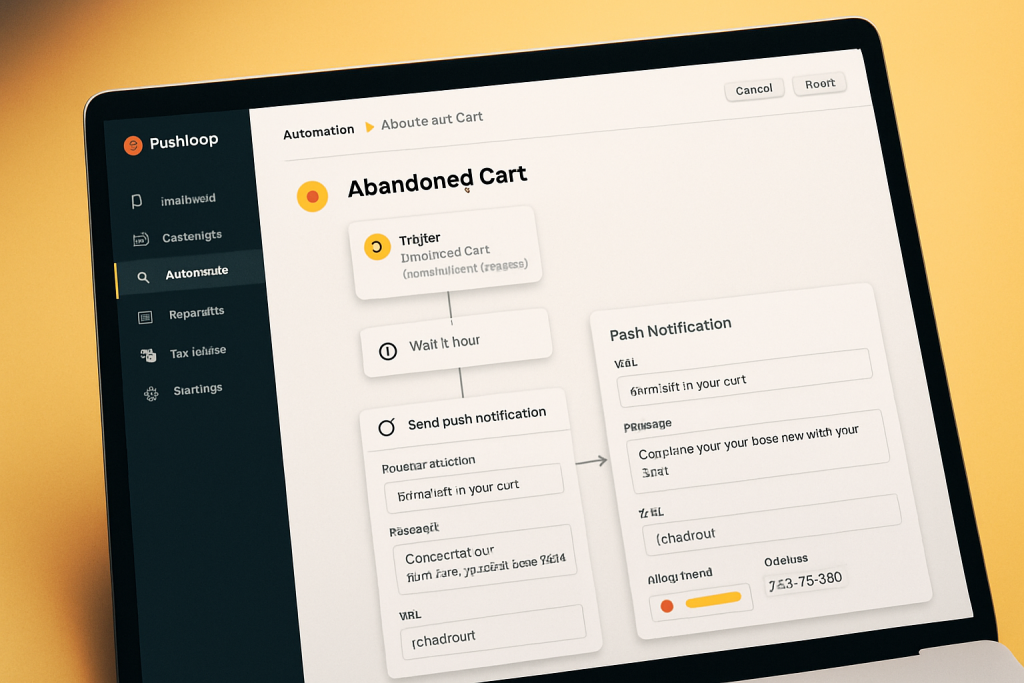
Now, the most important part: setting up the abandoned cart recovery automation itself. Here’s how to configure it for maximum impact:
- Select the “Abandoned Cart” automation type. Pushloop likely offers a pre-built template for this specific use case, simplifying the setup process.
- Give your automation a descriptive name (e.g., “Abandoned Cart Recovery – First Attempt”). This helps you easily identify and manage your automations.
Setting the Delay Time
Timing is crucial. You don’t want to bombard customers immediately after they abandon their cart, but you also don’t want to wait too long and risk them forgetting about their intended purchase.
- Choose an appropriate delay time. A common strategy is to send the first notification after 30 minutes to 1 hour. This gives customers time to return and complete their purchase naturally but reminds them before they completely lose interest.
- Consider sending a sequence of notifications. You could send a second notification after 24 hours if the first one doesn’t lead to a purchase. Increase the urgency with each subsequent notification, but be mindful of not becoming intrusive.
Crafting Compelling Push Notification Copy
Your push notification copy is your chance to win back a customer. Make it concise, engaging, and persuasive.
- Use a friendly and helpful tone. Avoid sounding accusatory or pushy.
- Remind the customer what they left behind. Mention specific products or categories from their cart to jog their memory.
- Highlight the benefits of completing the purchase. Emphasize things like free shipping, limited-time offers, or the popularity of the items in their cart.
- Include a clear call to action. Use phrases like “Return to Cart,” “Complete Your Order,” or “Shop Now.”
- Keep it brief. Push notifications have limited space, so make every word count.
Here are some example push notification messages:
“Still thinking about those amazing [Product Name]? They’re waiting for you in your cart!”
“Don’t miss out! Your cart is about to expire. Complete your purchase now.”
“We saved your cart! Enjoy free shipping when you complete your order today.”
Adding Dynamic Product Details
Personalization significantly improves the effectiveness of your abandoned cart recovery notifications. Pushloop allows you to dynamically insert product details from the customer’s cart into the notification.
- Use placeholders to insert product names, images, or prices. Pushloop should provide specific placeholders that you can use in your notification copy (e.g.,
{{product_name}},{{cart_total}}). Consult Pushloop’s documentation or help center for the correct syntax. - Preview your notifications to ensure the dynamic content is displayed correctly. This is crucial to avoid any errors or formatting issues.
Step 4: Testing and Activating Your Automation
Before launching your abandoned cart recovery automation, it’s essential to test it thoroughly to ensure everything works as expected.
- Simulate an abandoned cart scenario. Add items to your cart on your Shopify store and then leave without completing the purchase.
- Verify that you receive the push notification within the specified delay time.
- Click on the notification to ensure it redirects you to your cart page.
- Check that the dynamic product details are displayed correctly in the notification.
Once you’re satisfied that everything is working correctly, activate your automation. Switch the toggle or click the “Activate” button in the Pushloop dashboard.
Bonus: Advanced Customization Options
Pushloop often provides advanced customization options to further refine your abandoned cart recovery strategy.
- Segmentation: Target specific customer segments with tailored messages. For example, you could create a separate automation for first-time customers or VIP clients.
- A/B Testing: Experiment with different notification copy, delay times, or incentives to see what performs best.
- Frequency Capping: Limit the number of notifications a customer receives within a specific timeframe to avoid overwhelming them.
Conclusion
Setting up abandoned cart recovery with Pushloop is a straightforward process that can significantly boost your e-commerce conversion rates. By following these steps, you can create automated push notifications that gently nudge customers back to their carts, turning potential losses into completed sales. Embrace the power of automation and start recovering those lost revenues today!
👉 Discover Pushloop on the Shopify App Store
“`

